sharingannouncementsguides
Share a link with only the people you choose
Linkdash links, files, and folders are now restricted by default. Invite people by email, add editors, or open an item to anyone with the link.
Igor Kirnosov7 min read
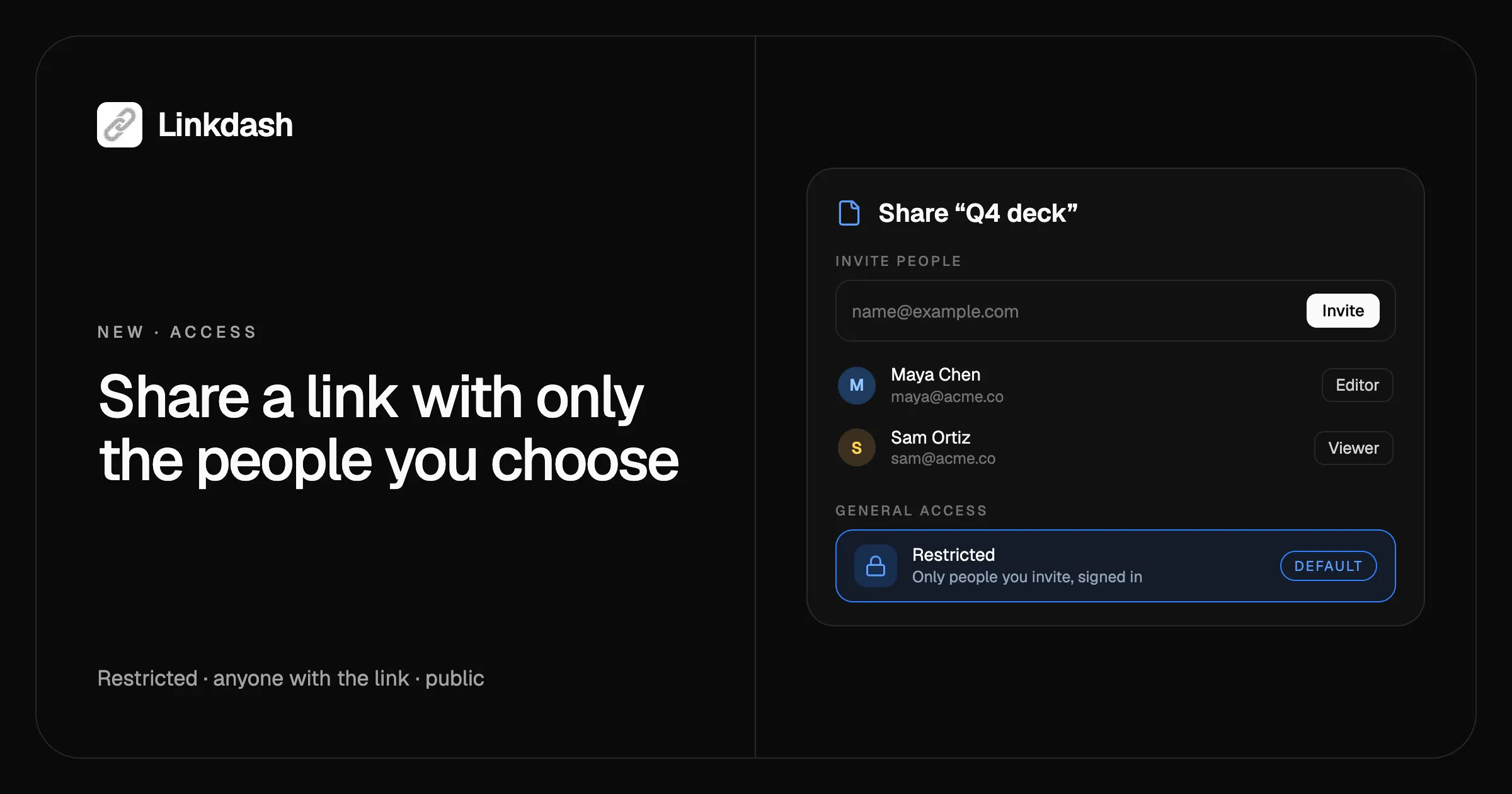
To share a link with only specific people, keep it restricted and invite them by email. Linkdash now has access control: every short link, file, text snippet, and folder has an access level, and new items start restricted, so only you and the people you invite can open them. When you do want a wider audience, open it to anyone with the link, or make it public at its short URL.
Access control is free on every plan, and it works from the dashboard, the CLI, the HTTP API, and MCP, so an AI agent can share things for you too.
What’s new
- Three access levels. Restricted, anyone with the link, or public, on every link, file, snippet, and folder.
- Restricted by default. Everything you create from now on is private until you decide otherwise. Links you created before today stay public, and nothing changes for them.
- Invite people by email. With or without a Linkdash account. Each person gets an invite email with the link.
- Viewers and editors. Viewers can open the item and see how it’s set up. Editors can change it, but passwords, sharing, and deleting stay with you.
- Activity. Every item shows who changed what, with each person’s avatar.
- Permissions. One page lists everything other people can open, and closes any of it in one click.
- Shared with me. Items other people share with you appear under Library → Shared.
The three access levels
| Access | Who can open it | Where it opens |
|---|---|---|
| Restricted (default) | You and the people you invite, signed in | linkdash.dev/s/<token> |
| Anyone with the link | Anyone who has the URL | linkdash.dev/s/<token> |
| Public | Anyone | Your short URL, like lida.sh/deck or your custom domain |
Restricted and anyone-with-the-link items open at a share URL with a long random code that no one can guess. Anyone who isn’t allowed in sees the same not-found page as a URL that doesn’t exist, so a restricted link doesn’t even reveal that it’s there.
Public works the way short links always have: a short, memorable URL for social posts, bios, newsletters, and printed QR codes. While a link isn’t public, its short URL returns 404 but the slug stays reserved, so making it public again brings the same URL (and any printed QR code) back to life.
Anyone-with-the-link items aren’t indexed by search engines, but they still unfurl with their social preview when you paste them in Slack or iMessage.
Viewers and editors
Everyone you invite is a viewer unless you make them an editor.
| Viewer | Editor | You (owner) | |
|---|---|---|---|
| Open the item | Yes | Yes | Yes |
| See variants, targets, and gates | Read-only | Yes | Yes |
| Change settings, variants, and files | No | Yes | Yes |
| See stats and activity | No | Yes | Yes |
| Passwords, slug, domain, and access | No | No | Yes |
| Share, move, copy, or delete | No | No | Yes |
A target behind a password stays hidden from viewers and editors alike, until they enter the same password a visitor would. An editor who unlocks a variant can change it for 30 minutes. Their changes count toward your plan, and they show up in the item’s Activity.
Viewers never see your stats, your passwords, the private name you gave the link, your tags, or who else has access.
Folders share everything inside
Sharing a folder shares everything in it, all the way down, including items you add later. Invite a client to their folder once, and every deliverable you drop in is theirs to open.
The same goes for opening a folder: set a folder to anyone with the link and everything inside opens to anyone with that link, even items that are restricted on their own. The dashboard warns you before you open a folder, and before you move something into a shared folder. Move an item back out and it returns to its own access.
See everything you’ve shared
Permissions in the dashboard sidebar answers “who can open what?” in three tabs:
- Shared by me. Every item you’ve invited people to, and who. Stop sharing removes them all at once.
- Open to anyone. Every item set to anyone with the link or public. Make restricted closes it, including everything inside a folder.
- Shared with me. Items other people shared with you. Leave removes one from your dashboard.
If a share URL ever ends up somewhere it shouldn’t, Reset link issues a new token. The old URL stops working, and the people you invited keep access through the new one.
Share a link with specific people
In the dashboard
- In your Library, choose Share from the item’s menu, or open the item and click Share.
- Type one or more email addresses under Invite people and pick Viewer or Editor.
- Click Invite. Each person gets an email with the link.
- Under General access, keep Restricted, or switch to Anyone with the link or Public.
- Use the copy button at the bottom of the dialog to grab the right URL for that access level.
People who already have an account get access right away. People without one get it once they sign up and verify that email address.
From the CLI
# Invite two people, one of them as an editor
linkdash links share q4 --email anna@example.com
linkdash links share q4 --email ben@example.com --role editor

# See who has access, then remove someone
linkdash links shares q4
linkdash links unshare q4 --email ben@example.com

# Open it to anyone with the link, or make a new link public from the start
linkdash links update q4 --access link
linkdash links create --url https://example.com/launch --access public

# Who changed what
linkdash links activity q4
New to the CLI? Start with how to shorten URLs from the command line.
With the HTTP API
curl https://api.linkdash.dev/v1/links/q4/shares \
  -H "Authorization: Bearer $LINKDASH_API_KEY" \
  -H "Content-Type: application/json" \
  -d '{"emails": ["anna@example.com", "ben@example.com"], "role": "viewer"}'

curl -X PATCH https://api.linkdash.dev/v1/links/q4 \
  -H "Authorization: Bearer $LINKDASH_API_KEY" \
  -H "Content-Type: application/json" \
  -d '{"access": "link"}'
Every link response now includes access, and its url is the share URL unless the link is public. List what you’ve shared with GET /v1/shares, and what others shared with you with GET /v1/shared.
With an AI agent over MCP
Connected agents get links_share, links_unshare, links_shares, links_shared, links_share_role, links_leave, links_unlock, and links_activity, and links_create and links_update take access. In Claude, ChatGPT, Cursor, or Claude Code, just ask:
Share the Q4 deck with anna@example.com as a viewer and ben@example.com as an editor, and keep it restricted.
What people use it for
- Client work. Share a client’s folder with their team only, and add files as the project moves along.
- Internal docs and decks. Keep drafts restricted to your team, then make the final version public on launch day.
- Working with a contractor. Give an editor access to update a campaign’s links and variants, without handing over passwords or the ability to delete.
- Sending something sensitive. An invoice, a contract, or a private video, opened only by the person it’s meant for, signed in.
- Cleaning up. Use Open to anyone on the Permissions page to find old public links and close them in a click.
FAQ
How do I share a link with only specific people?
Keep the link restricted, the default for new links, and invite people by email from Share in the dashboard, or with linkdash links share <id> --email <address>. Only the people you invite can open it, and they have to be signed in with that email.
Do the people I invite need a Linkdash account?
They need to sign in, so a free account is enough. If they don’t have one yet, the invite email takes them to sign up, and access starts once they verify that address.
What’s the difference between restricted and anyone with the link?
Restricted only opens for you and the people you invited, signed in. Anyone with the link opens for whoever has the URL, no sign-in needed. Both use a share URL with a random token that can’t be guessed, and neither opens at the short URL.
Did my existing links change?
No. Links created before access control are public, and they keep working at their short URLs exactly as before. Only new items start restricted.
Can an editor see my link’s password?
No. Editors can’t add, change, or remove passwords. A variant behind a password stays hidden until the editor enters it, the same as a visitor would, and then they can edit it for 30 minutes.
Can I share a whole folder?
Yes. Sharing a folder shares everything in it, including subfolders and anything you add later. See the sharing docs for how folder and item access combine.
Is access control free?
Yes, on every plan, including Free. You can invite up to 200 people per item. Sharing, unsharing, and changing access each count as one event toward your monthly quota. See pricing.