

foldersannouncementsguides
Share multiple links with one link: meet folders
Linkdash now has folders. Group links, files, and text snippets, then share the whole folder as one short link with its own password and expiry.
Igor Kirnosov7 min read
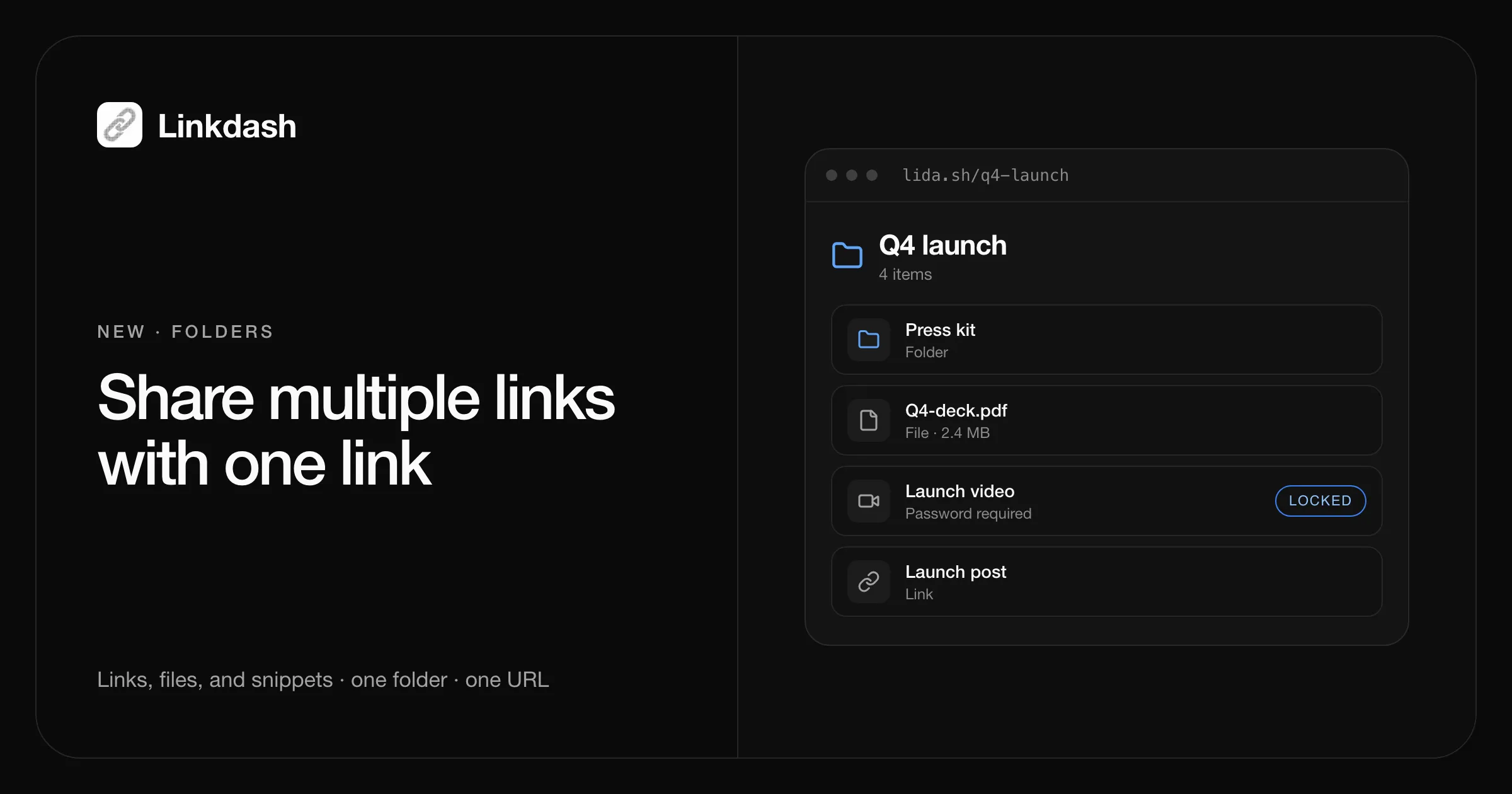
To share multiple links with one link, put them in a folder and send the folder’s short link. Linkdash now has folders: group short links, uploaded files, and text snippets, nest folders inside folders, and share any folder as a single URL like lida.sh/q4-launch. Visitors see a clean list of everything inside they can open, and each item still opens at its own short link with its own password, schedule, and analytics.
Folders are free on every plan, and they work from the dashboard, the CLI, the HTTP API, and MCP, so an AI agent can file things for you too.
What’s new
- The Library. The Links tab is now the Library: your links, files, and snippets in one place, with folders, a grid view with previews, and a table view. The URL follows the path, so
/dashboard/library/clients/acmeis a page you can bookmark. - Folders inside folders. Organize by client, campaign, launch, or project, up to 32 levels deep.
- A folder is a short link. Every folder has its own slug, QR code, social preview, and stats, plus the same gates as any link: a password, a start date, an expiry, and a limit on openings.
- Drag and drop. Drag items onto a folder or onto the breadcrumbs to move them, or use Move to….
- Make a copy. Duplicate a link, file, or snippet in one click, with its password, gates, preview, and tags. Files are duplicated too.
- Safe deletes. Deleting a folder asks whether to keep the items inside (they move up a level) or delete everything.
How sharing a folder works
When someone opens a folder’s short link, Linkdash first checks the folder’s own gate. If the folder has a password, the visitor enters it. If it has expired or is paused, the link stops working, like any other link.
Then the visitor sees the folder’s name and a list of what’s inside: subfolders first, then the newest items, each with an icon or a thumbnail. The list only shows what that visitor could open right now. Paused, scheduled, expired, and used-up items are hidden automatically, so you never send someone to a dead end.
A folder never grants access on its own. Each item opens at its own short URL, in a new tab, so its own rules apply:
| Setting | On the folder | On each item |
|---|---|---|
| Password | Required to see the list | Still required to open the item |
| Expiry and start date | Hides the whole folder | Hides just that item |
| Analytics | Counts folder openings | Counts each item’s visits and downloads |
| Variants and targeting | Not applicable | Each link still routes by country, device, or split |
Names stay private where it matters. The folder name is shown to visitors, and each item shows its preview title or file name, never the private name you gave a link in your dashboard.
Create a folder and share it
In the dashboard
- Open Library and click New folder.
- Give it a name and, optionally, a custom slug.
- Open the folder and click Create link to add a new link, file, or snippet straight into it, or drag existing items onto the folder.
- To lock it, choose Edit in the folder’s menu and set a password or an expiry.
- Copy the folder’s short link from under its name and send it.
From the CLI
# Create the folder with a password and a 30-day expiry
linkdash links create --folder "Q4 launch" --slug q4-launch \
  --password "launch-2026" --expires 30d

# Add new items straight into it
linkdash links create --file ./q4-deck.pdf --in q4-launch
linkdash links create --url https://example.com/launch-video --in q4-launch
linkdash links create --text "$(cat RELEASE_NOTES.md)" --in q4-launch

# Move an existing link in, then check what's inside
linkdash links move k3m9xq --in q4-launch
linkdash links list --in q4-launch
The folder’s URL is https://lida.sh/q4-launch. Every create, move, and copy works with your custom domain too. New to the CLI? Start with how to shorten URLs from the command line.
With the HTTP API
curl https://api.linkdash.dev/v1/links \
  -H "Authorization: Bearer $LINKDASH_API_KEY" \
  -H "Content-Type: application/json" \
  -d '{"kind": "folder", "name": "Q4 launch", "slug": "q4-launch"}'

curl https://api.linkdash.dev/v1/links \
  -H "Authorization: Bearer $LINKDASH_API_KEY" \
  -H "Content-Type: application/json" \
  -d '{"url": "https://example.com/launch-video", "folder": "q4-launch"}'
Move an existing link with POST /v1/links/:id/move and copy one with POST /v1/links/:id/copy. List what’s inside with GET /v1/links?folder=q4-launch.
With an AI agent over MCP
Connected agents get two new tools, links_move and links_copy, and links_create and links_list now understand folders. In Claude, ChatGPT, Cursor, or Claude Code, just ask:
Put the Q4 deck and the launch video in a folder called “Q4 launch”, lock it with a password, and give me the link.
What people use folders for
- Client handoffs. One folder per client with the deliverables, the invoice, and the brief. Lock it with a password and set it to expire when the project closes.
- Launch and press kits. Logos, screenshots, the deck, and the announcement post behind one link, ready for journalists and partners.
- Course and workshop materials. Slides, recordings, and reading links in one place for attendees, with a QR code on the last slide.
- A lightweight link page. A curated list of links you can share in a bio, an email signature, or a Slack channel, with stats on every item.
- Team resources. Onboarding docs, dashboards, and runbooks grouped by topic, with folders inside folders for each team.
Folders compared to the alternatives
| Linkdash folder | Cloud drive folder | Link-in-bio page | |
|---|---|---|---|
| Links, files, and text together | Yes | Files only, links as shortcuts | Links only |
| Short, custom URL | Yes, on your domain too | Long share URL | Yes |
| Password and expiry | On the folder and every item | Usually paid or not available | Rarely |
| Per-item analytics | Visits, countries, devices, referrers | Limited | Clicks only |
| API, CLI, and AI agents | Yes | Partial | Rarely |
Move, copy, and delete
- Move. An item lives in one folder at a time. Moving it never changes its short link, so links you have already shared keep working.
- Copy. Make a copy creates a new item with a new random slug in the same folder, with the same content, password, gates, preview, tags, and domain. Its openings and analytics start fresh. Copied files count toward your storage.
- Delete. Deleting a folder offers Keep items, which moves everything inside up a level, or Delete everything, which removes the folder and all its contents, all the way down.
The full reference is in the Folders docs.
FAQ
How do I share multiple links with one link?
Create a folder, put the links in it, and share the folder’s short link. Visitors see every link inside they can open, and each one keeps its own analytics. In the CLI, that’s linkdash links create --folder "Name" followed by linkdash links move <id> --in <folder> for each link.
Can I share files and links together in one folder?
Yes. A folder can hold short links, uploaded files such as PDFs, images, and videos, text snippets, and other folders. Images and items with a preview image show a thumbnail in the list, unless the item is password protected.
Can I password protect a folder?
Yes. Set a password on the folder and visitors must enter it to see the list. Items inside that have their own password still ask for it when opened, so you can share a folder openly and lock only the sensitive files.
Can a shared folder expire?
Yes. Give the folder an expiry, such as --expires 30d or a date, and the folder’s link stops working after that. You can also set a start date or a maximum number of openings.
Does putting a link in a folder change its URL?
No. Every item keeps its own short link. Moving it in or out of folders never changes the URL, so anything you’ve already shared keeps working.
Are folders free?
Yes, on every plan, including Free. There is no limit on the number of folders. Opening a shared folder counts as one visit toward your monthly events, like any other link. See pricing.
Can visitors see items I’ve paused or scheduled?
No. The folder page only lists items a visitor could open right now. Paused, scheduled, expired, and used-up items are hidden until they’re active again.