

mcpclaude-codeagents
How to add a URL shortener to Claude Code with MCP
Connect Claude Code to Linkdash over MCP so it can create short links, split traffic, share files, and read click stats without leaving the terminal.
Igor KirnosovUpdated 6 min read
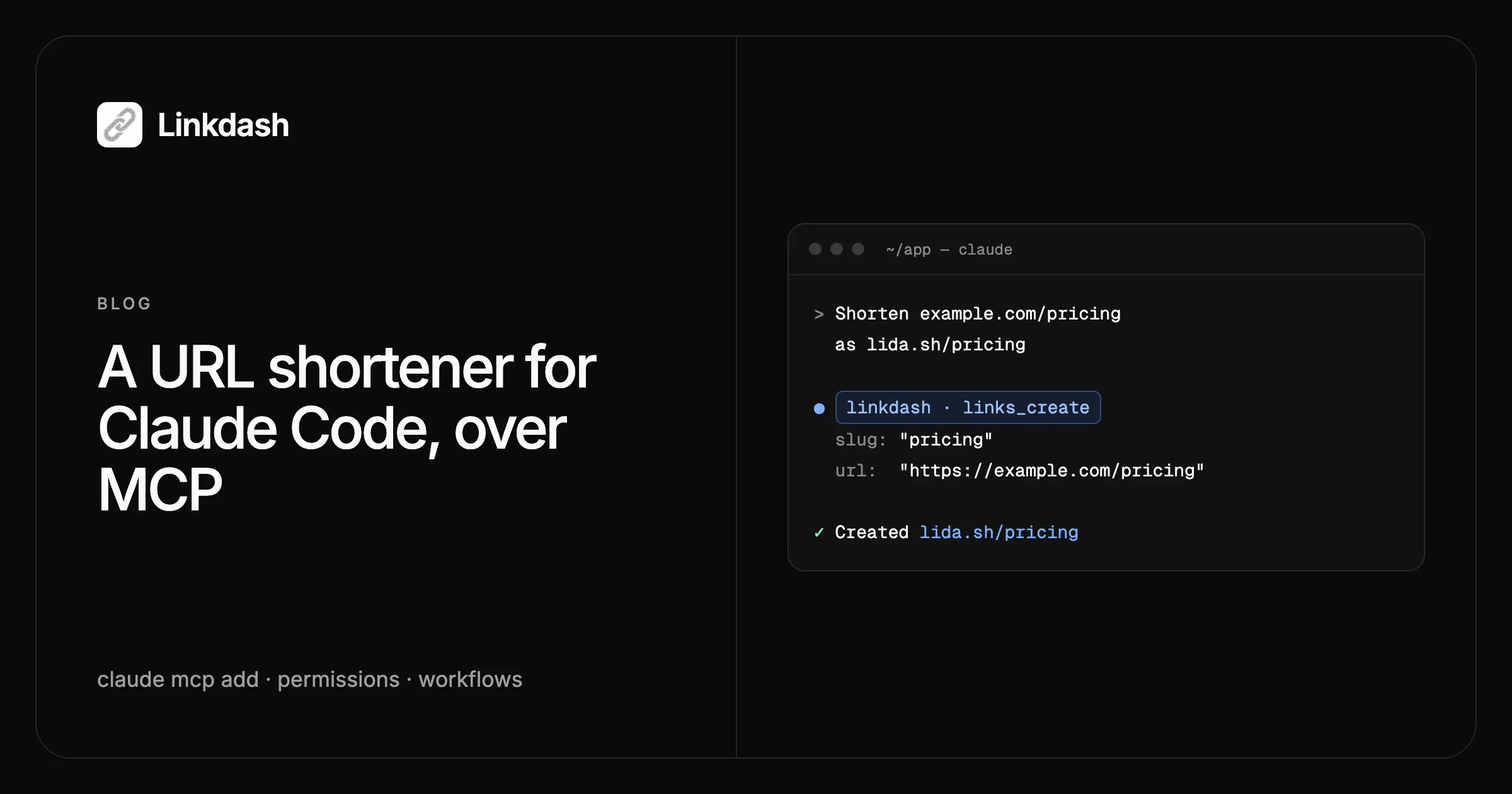
Claude Code can create and manage short links once you connect it to a URL shortener over MCP. Add the Linkdash MCP server with one command, sign in once in your browser, and Claude can shorten URLs, split traffic between pages, share files behind an expiry, and read click stats, all from the same terminal session where it writes your code.
This guide covers the setup, sharing it with your team, choosing which tools Claude may run without asking, the workflows where it pays off, and running it in CI. Using Cursor or Codex instead? The MCP docs list their setup commands.
What Claude Code can do with it
The Linkdash MCP server exposes the same operations as the CLI and the HTTP API, as tools Claude discovers on its own:
| Tools | What Claude can do |
|---|---|
links_create, links_update, links_delete |
Create, change, pause, and remove links |
variants_add, variants_update, variants_remove |
Split traffic, or route by country, device, or OS |
links_list, links_get, links_stats |
Find links and read visits, countries, and referrers |
files_upload_url |
Upload a file and share it as a link |
links_export, links_import |
Move links in and out as CSV |
domains_*, webhooks_* |
Manage custom domains and webhooks |
Step 1: Add the server
claude mcp add --transport http linkdash \
  https://api.linkdash.dev/mcp
This adds Linkdash for the current project. Add --scope user to make it available in every project on your machine.
Step 2: Sign in
claude mcp login linkdashYour browser opens the Linkdash sign-in. If you don’t have an account yet, you can create one there on the Free plan. After you sign in, a consent screen asks whether Claude Code may use your account. Click Allow, and Claude Code stores the access token and renews it on its own.
You can also sign in from inside a session: run /mcp, pick linkdash, and choose to authenticate. Check the connection with:
claude mcp listlinkdash should show as ✔ Connected. Then try it:
Shorten https://example.com/pricing as lida.sh/pricing.
Claude calls links_create and replies with the new short link.
Step 3: Share the setup with your team
To give everyone on a repository the same server, add a .mcp.json file to the project root:
{
  "mcpServers": {
    "linkdash": {
      "type": "http",
      "url": "https://api.linkdash.dev/mcp"
    }
  }
}
There is nothing secret in the file, so it is safe to commit. The first time a teammate opens the project, Claude Code asks them to approve the server, and each person signs in with their own Linkdash account, so every link lands in the account of whoever asked for it.
Step 4: Decide what runs without asking
By default, Claude Code asks before it calls an MCP tool. Reading stats is harmless, so it is worth allowing; deleting links is worth blocking outright. Add permission rules to .claude/settings.json:
{
  "permissions": {
    "allow": [
      "mcp__linkdash__links_list",
      "mcp__linkdash__links_get",
      "mcp__linkdash__links_stats"
    ],
    "deny": [
      "mcp__linkdash__links_delete",
      "mcp__linkdash__variants_remove"
    ]
  }
}
MCP tools are named mcp__<server>__<tool>, so these rules assume you named the server linkdash in step 1. Creating and updating links still asks every time, which keeps you in the loop on anything that changes where a link goes.
Workflows that pay off in the terminal
Shorten every link in a release
Create short links for every URL in CHANGELOG.md under 2.4.0, tag them release-2.4, and replace the URLs in the file.
Claude reads the file, calls links_create once per URL with the tag, and edits the changelog. The tag keeps the release’s links together in the dashboard and in later stats questions.
Split a page you just built
Create lida.sh/pricing that splits visitors 50/50 between /pricing and /pricing-v2, with utm_content set to each variant’s name.
Claude creates one link with two variants, each tagged so your analytics tool can tell the groups apart. The guide to A/B testing a link covers how long to run the test and how to read the result.
Share a build that expires
Share dist/app-1.4.2.dmg as a link that expires in 3 days and stops after 5 openings.
Because Claude Code has a shell, it can handle files: it calls files_upload_url, uploads the file to the returned URL with curl, and then calls links_create with the uploaded file, expires: "3d", and maxOpenings: 5. The file never passes through the conversation itself.
Check how links are doing
Which links tagged release-2.4 got the most visits in the last 7 days, and where did the visits come from?
Claude lists the tagged links, then calls links_stats for each with last: "7d". Each result includes visits, countries, and referrers. With the permission rules from step 4, these reads run without a prompt.
Running Claude Code in CI
Signing in needs a person at a browser, so headless runs, such as claude -p in a CI job, use an API key instead. Create one under API keys (keys start with ldash_), store it as a CI secret named LINKDASH_API_KEY, and pass it as a header:
{
  "mcpServers": {
    "linkdash": {
      "type": "http",
      "url": "https://api.linkdash.dev/mcp",
      "headers": {
        "Authorization": "Bearer ${LINKDASH_API_KEY}"
      }
    }
  }
}
Claude Code fills in ${LINKDASH_API_KEY} from the environment, so the key itself is never committed. The tools and permission rules work the same either way.
MCP or the CLI?
Claude Code can also run the linkdash CLI through its shell, and both reach the same account:
- MCP needs no install. Claude sees typed tools and their parameters, which makes it the easier choice when you just want Claude to manage links.
- The CLI (
npm i -g linkdash-cli) prints JSON, which suits scripts that Claude writes for you. To teach Claude the CLI, install the Linkdash agent skill withnpx skills add https://linkdash.dev/skills/linkdash/SKILL.md.
Troubleshooting
linkdashshows! Needs authentication. Runclaude mcp login linkdashand sign in again. This also happens after you disconnect Claude Code in the dashboard.- A server from
.mcp.jsonstays pending. Startclaudein the project and approve it.claude mcp reset-project-choicesclears earlier choices. - Tools fail with a 401 error in CI.
LINKDASH_API_KEYis missing or wrong in that environment, or the key was deleted.
FAQ
Does Claude see my password or a key?
No. You sign in on linkdash.dev in your browser, and Claude Code receives a token that it keeps in its own configuration. Neither your password nor the token needs to appear in the conversation.
How do I disconnect Claude Code?
In the Linkdash dashboard, open API keys and click Disconnect next to Claude Code under Connected apps. Its access stops at once. Running claude mcp logout linkdash also removes the stored token from your machine.
Can Claude delete my links?
Only if you let it. The deny rules in step 4 block links_delete and variants_remove even if Claude tries.
Is it free?
Yes, on the Free plan, which includes 5,000 events a month. See pricing for higher limits.
Can I connect Cursor, Codex, or ChatGPT too?
Yes. The same server works with all of them, and most only need the URL and a sign-in. The MCP docs list the steps for each.