

appstargetingguides
How to create one link for the App Store and Google Play
Make one short link that sends iPhone users to the App Store, Android users to Google Play, and everyone else to your site, with install tracking and a QR code.
Igor Kirnosov7 min read
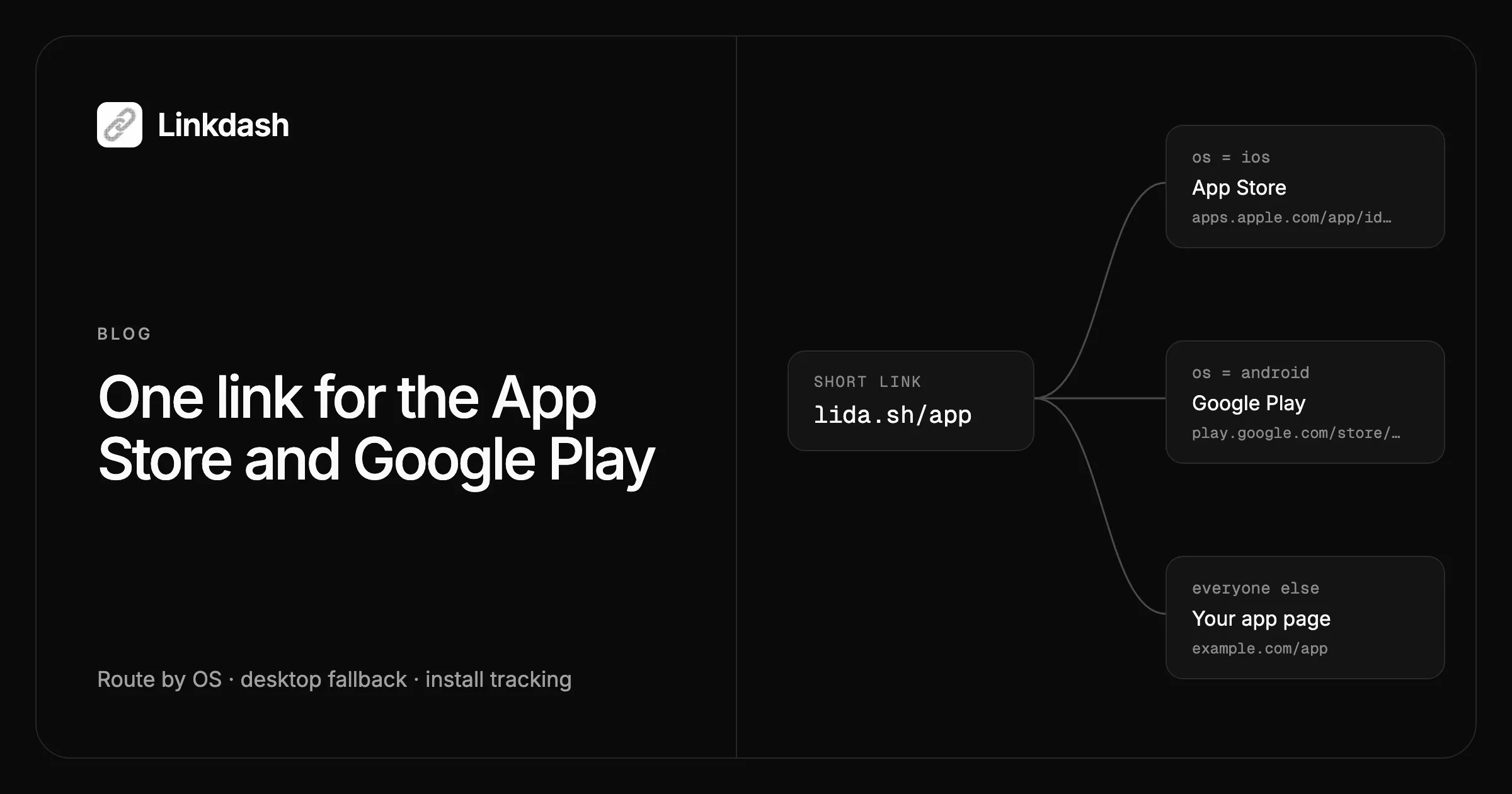
One link for both app stores is a short link that checks the visitor’s operating system and sends them to the right place: iPhones and iPads to the App Store, Android phones and tablets to Google Play, and everyone else, such as desktop visitors, to a web page. You print or share one URL, and every visitor lands where they can actually install your app.
This guide shows how to build that link in Linkdash in a few minutes, give desktop visitors a page worth landing on, track installs in App Store Connect and Google Play Console, and turn the link into a single QR code.
What the link does
| Visitor | Destination |
|---|---|
| iPhone or iPad | Your App Store page |
| Android phone or tablet | Your Google Play page |
| Desktop, or anything else | A page on your site with both store badges |
In Linkdash, every link holds one or more variants, and a variant can carry conditions. An app link is three variants: one for os=ios, one for os=android, and one without conditions that catches everyone else.
Step 1: Get clean store URLs
Copy both store URLs and trim them to what the stores need:
- App Store:
https://apps.apple.com/app/id1234567890. The links Apple’s share sheet gives you include a country code and the app name, as inapps.apple.com/us/app/your-app/id1234567890. Only the ID is required, and the short form works in every country. - Google Play:
https://play.google.com/store/apps/details?id=com.example.app. The package name afterid=is all you need. Drop extras such as&hl=en, so visitors see the store in their own language.
Step 2: Create the link
With the CLI, one command creates all three variants:
linkdash links create --slug app --name "App download" \
  --variant web --url https://example.com/app \
  --variant ios --when os=ios \
    --url https://apps.apple.com/app/id1234567890 \
  --variant android --when os=android \
    --url "https://play.google.com/store/apps/details?id=com.example.app"
{
"id": "app",
"url": "https://lida.sh/app",
"kind": "group",
"variants": [
{ "name": "web", "kind": "url" },
{ "name": "ios", "kind": "url" },
{ "name": "android", "kind": "url" }
]
}Flags after each --variant belong to that variant until the next one. Keep the Google Play URL in quotes, because zsh treats the ? as a wildcard and stops with “no matches found”.
In the dashboard, create the link with your web page as the URL, open it, and click Add variant. Name the variant ios, paste the App Store URL, and type ios in the OS field. Add an android variant the same way.
The HTTP API takes the same variants, each with a condition such as "when": { "os": ["ios"] }. An AI agent connected over MCP can also set it up if you ask it for one link that sends iPhones to your App Store page and Android phones to Google Play.
Step 3: Give everyone else a useful page
Desktop visitors, and any device that is neither iOS nor Android, get the web variant. Make that page do the job the stores cannot:
- Show both store badges, each linking straight to its store.
- Show a QR code of the short link itself. A desktop visitor scans it with their phone and lands on the right store.
- Say in one sentence what the app does.
The same variant also decides what link previews show. When someone shares lida.sh/app in Slack, X, or another app that unfurls links, the preview is built from the variant without conditions, so people see your page instead of a bare store listing.
Step 4: Track installs, not just taps
Linkdash counts visits for each variant, so you can see how many people opened the link on each platform:
linkdash links stats app --last 30dInstalls happen inside the stores, so measure them there. Put campaign data in each store URL:
App Store. Add Apple’s campaign parameters: pt is your provider token from App Store Connect, ct is a campaign name you choose (up to 40 characters), and mt=8 marks an app link. App Store Connect then reports page views, downloads, and sales for that campaign.
linkdash links variants update app ios --url \
  "https://apps.apple.com/app/id1234567890?pt=123456&ct=launch-qr&mt=8"
Google Play. Add a referrer parameter holding your UTM tags, URL-encoded as a single value, so = becomes %3D and & becomes %26:
linkdash links variants update app android --url \
  "https://play.google.com/store/apps/details?id=com.example.app\
&referrer=utm_source%3Dqr%26utm_campaign%3Dlaunch"
That referrer decodes to utm_source=qr&utm_campaign=launch. Play Console reports installs by UTM source and campaign, and your app can read the full string through the Play Install Referrer API.
Linkdash’s --utm-* flags do not help here. They add utm_ parameters to the destination URL, which works for web pages, but the stores ignore them: the App Store reads ct, and Google Play reads referrer. Keep the --utm-* flags for the web variant.
To compare channels, create one link per channel, such as app-qr for packaging and app-email for your newsletter, each with its own campaign name.
Step 5: Turn it into one QR code
Open the link in the dashboard and click QR code to download it, optionally with your logo in the middle. The routing happens when the code is scanned, so one printed code serves both stores.
If a store URL changes, update the variant, and every QR code already printed follows the change:
linkdash links variants update app ios \
  --url https://apps.apple.com/app/id9876543210
How the routing decides
- Operating system comes from the browser. When the link opens, Linkdash reads the browser’s user agent. iPhones and iPads report
ios, and Android phones and tablets reportandroid. - Conditions are checked first. If a conditional variant matches, the visitor gets it. If none match, the variant without conditions serves.
- In-app browsers work too. Instagram, TikTok, and other apps that open links in their own browser report the phone’s operating system the same way. Some of them ask before leaving the app for a store.
- iPads in desktop mode count as Macs. Safari on iPad requests desktop websites by default and identifies itself as a Mac, so those visitors get the
webvariant. That is one more reason the page should carry both badges. - Keep conditions from overlapping. If a visitor matches two conditional variants, Linkdash splits them between both by weight instead of choosing the more specific one.
os=iosandos=androidnever overlap, so an app link is safe.
Test before you share it
Open the link on an iPhone, an Android phone, and a computer. If you only have a computer, open Chrome’s DevTools, turn on the device toolbar, choose an iPhone or a Pixel, and load the link. The device toolbar changes the browser’s user agent, which is what the routing reads.
Afterwards, linkdash links stats app shows each test visit under the variant it reached.
Common mistakes
- No fallback variant. Without a variant that has no conditions, desktop visitors have nowhere to go.
- Targeting by device instead of OS.
--when device=mobilesends Android phones to the App Store too. Useos=iosandos=android. - A pinned country or language in the store URL.
/us/or&hl=enforces one storefront or language on every visitor. - UTM flags on store variants. The stores ignore
utm_parameters on their URLs. Usectfor the App Store andreferrerfor Google Play. - A new link for every store change. Update the variant instead, so shared links and printed QR codes keep working.
FAQ
Can one QR code open both the App Store and Google Play?
Yes. Encode the short link in the QR code. When someone scans it, Linkdash checks their phone’s operating system and sends iPhones to the App Store and Android phones to Google Play.
Does the link open my app if it is already installed?
It opens your store page, where the store shows an Open button instead of Get or Install. To open a specific screen inside your app, use universal links on iOS and App Links on Android, set up on your own domain.
Can I use my own domain instead of lida.sh?
Yes. Connect a custom domain, such as go.example.com, and create the link on it. The routing works the same way.
What about Huawei AppGallery and other Android stores?
Linkdash detects the operating system, not which store a phone has installed, so every Android visitor gets the same variant. If you also publish on AppGallery, point the android variant at a page that offers both stores.
Is it free?
Yes, on the Free plan, which includes 5,000 events a month. Each visit counts as one event. See pricing for higher limits.